
Installing Korean Fonts on the Zebra ZD421
Installing Korean Fonts I'll explain how to install Korean fonts on the Zebra ZD421. This is a label barcode printer, and I purchased and use the 300 dpi versio
GGAMI
Installing Korean Fonts I'll explain how to install Korean fonts on the Zebra ZD421. This is a label barcode printer, and I purchased and use the 300 dpi versio
Contents
I'll explain how to install Korean fonts on the Zebra ZD421.

This is a label barcode printer, and I purchased and use the 300 dpi version. The ZPL barcode printing language is better developed than I expected, but it has an issue with positioning. (Once you set it up, it doesn't change much, but it's cumbersome to have to adjust the settings manually rather than automatically.)
This label printer can only print in Korean if a Korean font is installed. There aren't as many resources as I expected, even when searching on Google. So I'm sharing this information.
The spacing and other aspects can vary depending on which font you install. The widely available font files seem to be Uhangul.zse Kfont3.zsu
There isn't a file upload feature right now, so I'll leave this for now. When I add an upload feature later, I should upload these as well.
The font we're going to install is SourceHanSansK-Medium.ttf. This isn't a Zebra-specific font, so it's very large. It's the well-known Noto Sans KR font.
https://www.zebra.com/us/en/support-downloads/printers/desktop/zd421.html To upload a font, you need to install Windows Printer Driver v10 from the link above.

 In the printer settings, go to Driver Settings.
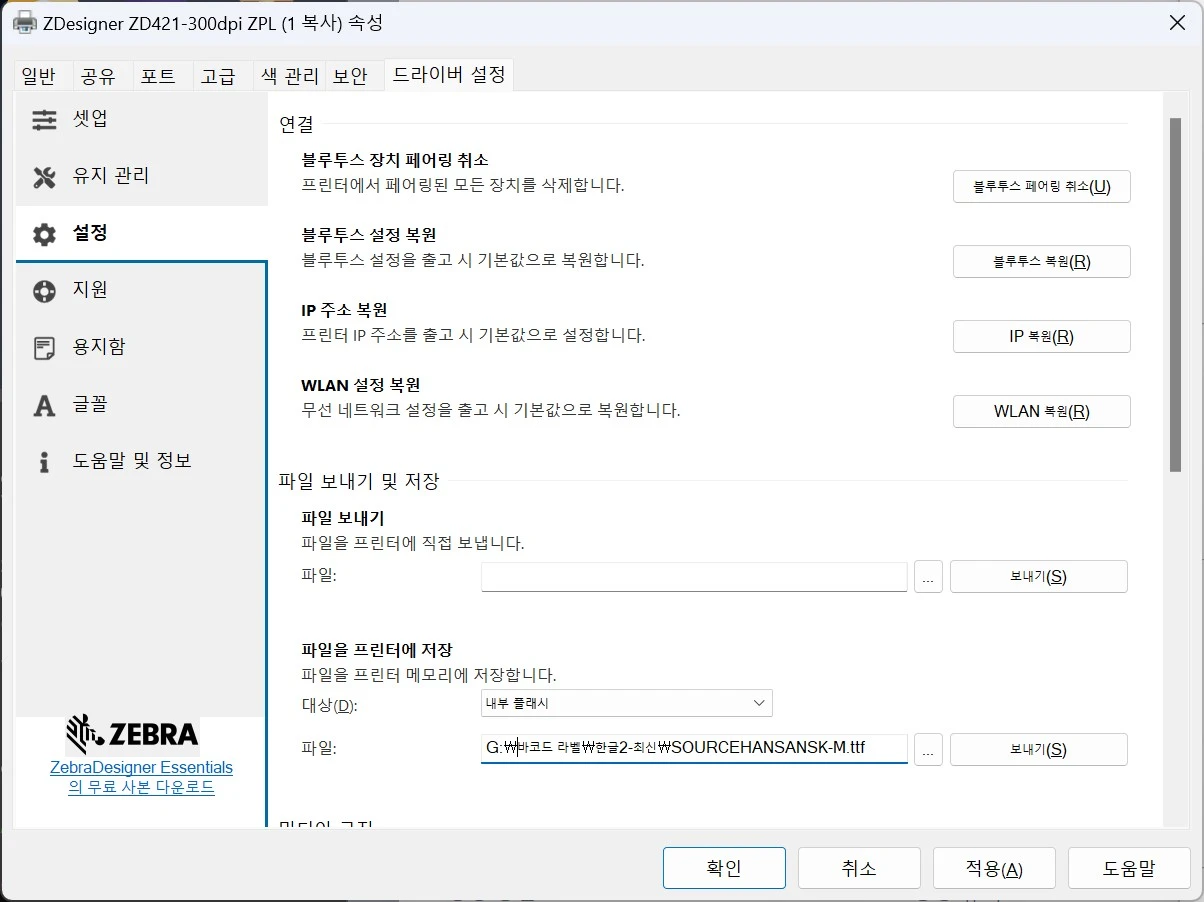
Here, select the font file using Store file to printer. Select Internal Flash as the destination.

If you go to the printer's IP address, you can view the directory and confirm that the file was uploaded. The image above shows the printer in its completely fresh, initial configuration.
While writing this post, I ran into a problem. I had requested support from Zebra Technologies, and after hearing back from support, I was able to resolve the issue.
https://supportcommunity.zebra.com/s/article/Using-the-SGD-Allcv-Command-U1-getvar-allcv-CR?language=en_US As explained at the link above, performing this command lets you retrieve the full configuration data.
! U1 getvar "allcv"For some reason, perhaps due to a problem during the font transfer process, the WebGUI became garbled. I was able to resolve this after receiving instructions from support.
! U1 setvar "device.oem.manufacturer_name" "Zebra Technologies"
! U1 setvar "device.oem.model_name" "ZTC ZD421-300dpi ZPL"
! U1 setvar "device.oem.home_url" "https://www.zebra.com"
! U1 setvar "device.oem.support_url" "https://www.zebra.com/support.html"
^XA^JUS^XZ
! U1 do "device.reset" "" <CR>
Since mine is a ZTC ZD421-300dpi ZPL, I updated the device data using the information above.
After that, the data printed normally.
While fixing the error above, I learned about a value called zpl.relative_darkness.
It's explained here, too, but it's more complicated than I expected.
To explain, if this value is set to 170, then if you include
~SD11in the ZPL code, it is applied as zpl.relative_darkness + the SD value. You can think of it as applying 17 + 11 = 28.
In other words, zpl.relative_darkness is the device's default darkness value, and although it can be set from -300 to 300, the value is applied after being divided by 10. So 170 is treated as 17.
However, since I send the ZPL code and configure it to set ~SD every time, I should set zpl.relative_darkness to 0 by default and send something like ~SD24.
The important thing here is that zpl.relative_darkness should be set to 0.
(This is the default value, though.)
Anyway, when installing fonts, you shouldn't send them using 파일 보내기.
I learned this while getting support, but I can't understand why there wasn't a problem with the first product I had before.
Fonts seem to work without any issues if you transfer them using Store file to printer.
That's it.