
Setting Up a MikroTik Router
I installed a MikroTik router that I had bought at least nine months earlier. But I was so busy and had so much work to deal with that I ended up installing it
GGAMI
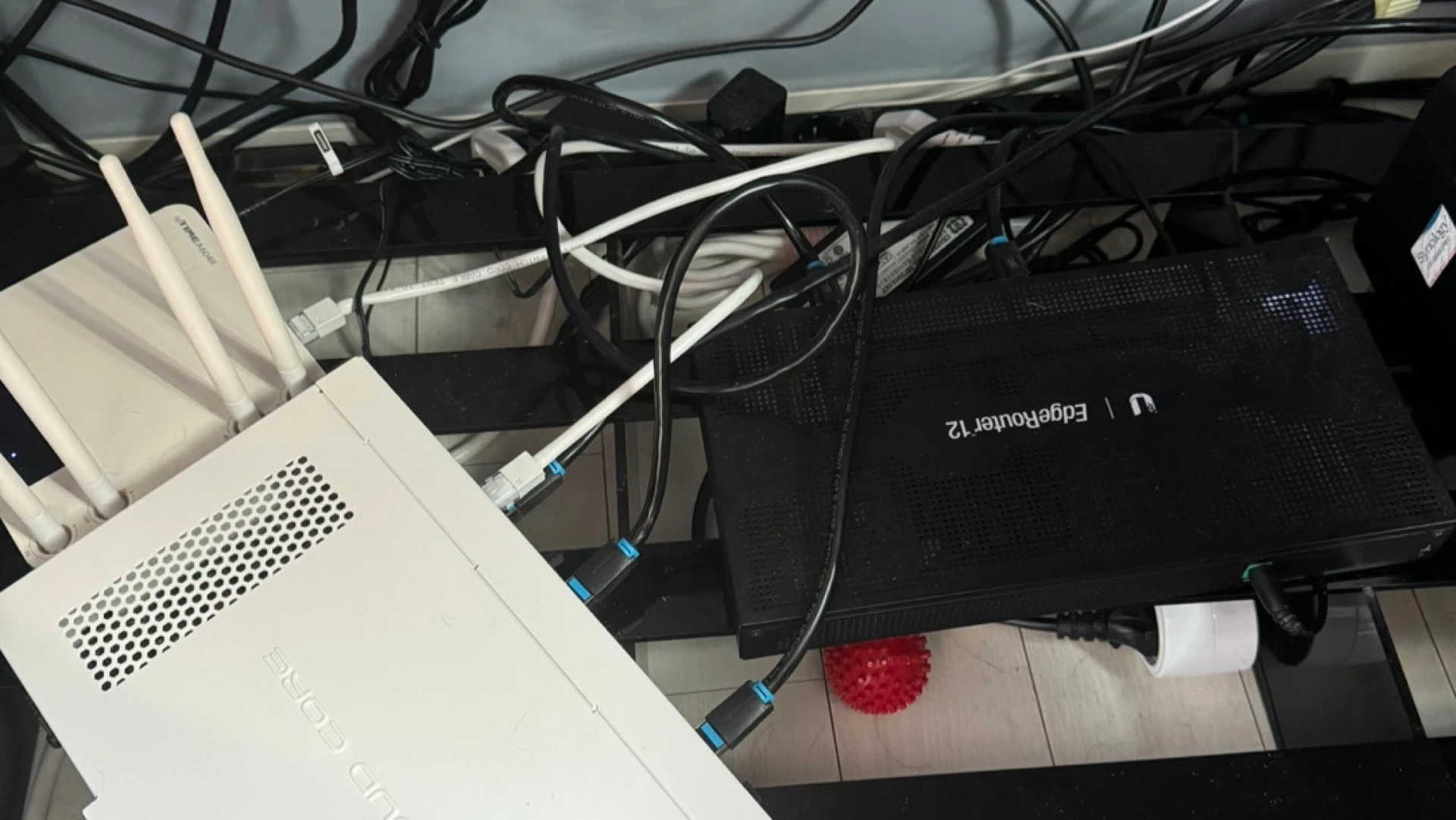
I installed a MikroTik router that I had bought at least nine months earlier. But I was so busy and had so much work to deal with that I ended up installing it
Contents
I installed a MikroTik router that I had bought at least nine months earlier. But I was so busy and had so much work to deal with that I ended up installing it much later than I should have. Honestly, setting everything up in one go was difficult, and I didn’t want to risk any service issues, so I put it off until after separating the network.
https://youtu.be/Gf-iCjh2Bwg There seem to be very few guides in either Korean or English. You can get everything set up perfectly by following along with this video.
The steps are explained in this order, but you can just follow along without overthinking it. Just follow along and you’ll be done.
This seems like something that can’t really be explained with pictures or words. If you don’t understand it from the outset, you won’t be able to figure it out anyway, and trying to illustrate all that information would be overkill. Just follow along with the video.
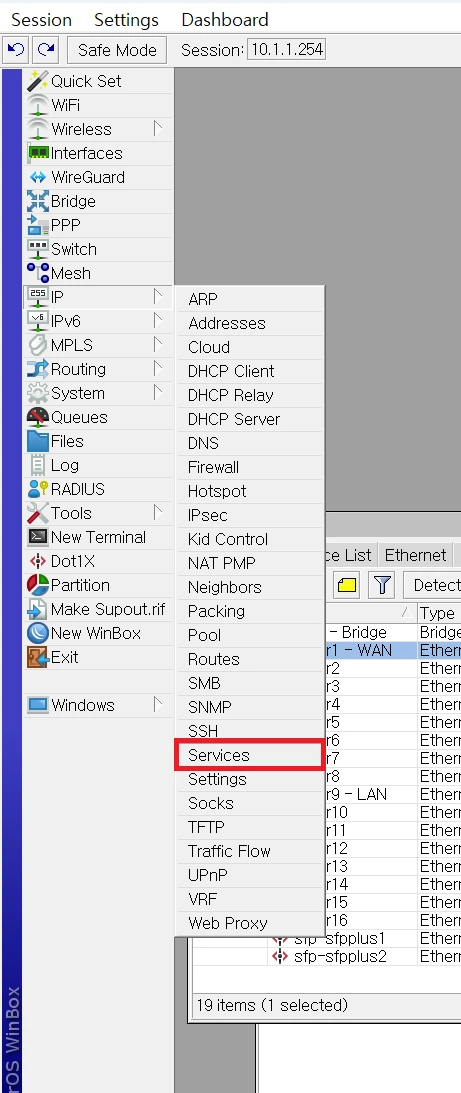
There’s a feature called WebFig that lets you configure things through the web, but since it’s accessible on port 80, it’s best to disable it.
 Otherwise, accessing it by IP like this will expose that page.
You could prevent access by filtering local IPs, but rather than go to that trouble, I’ll just disable it.
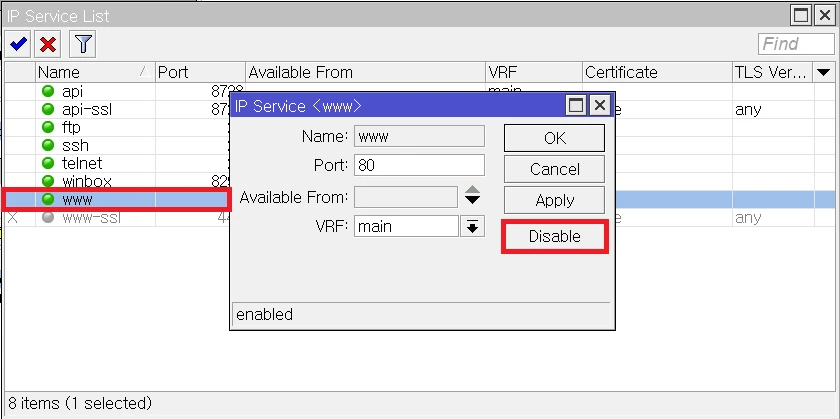
Change the setting to Disable here.
 It’s best to disable everything else too, not just www.
(I’m not sure whether Winbox needs to be disabled as well.)
There are cases where you need to expose various ports to the outside for individual computers, such as those for a Synology NAS, a server computer, a database, Redis, SSH, and so on.
In these cases, you can open them using port forwarding. Here’s how.
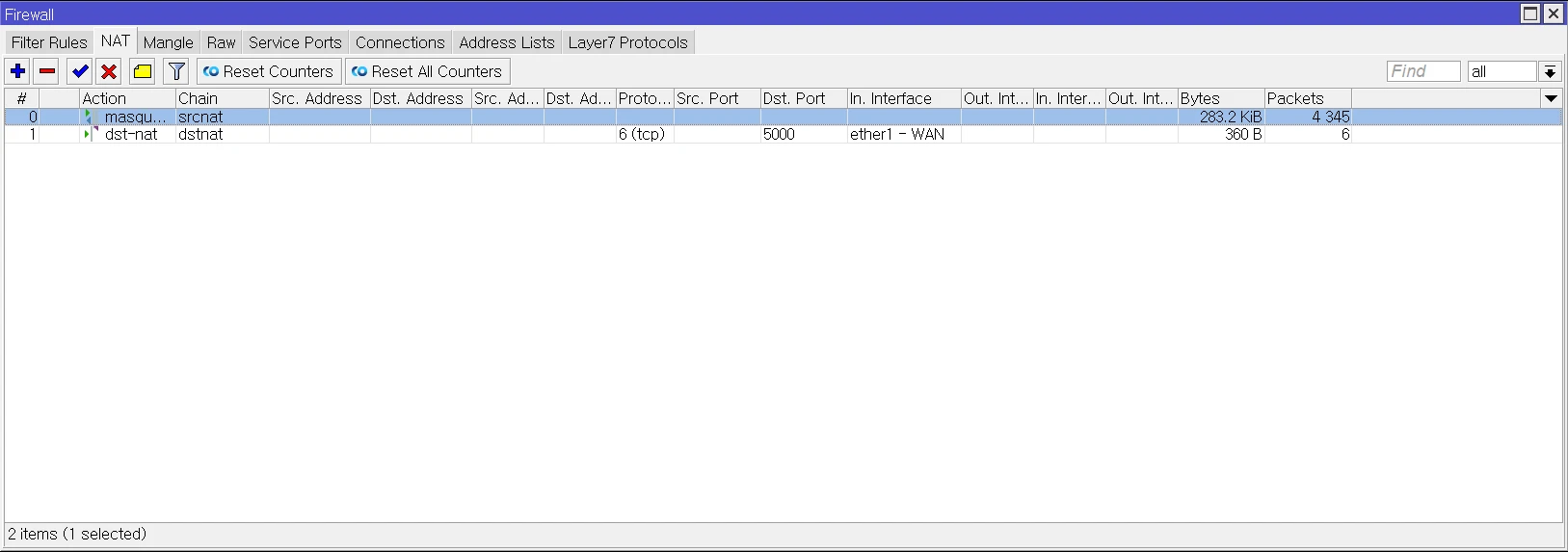
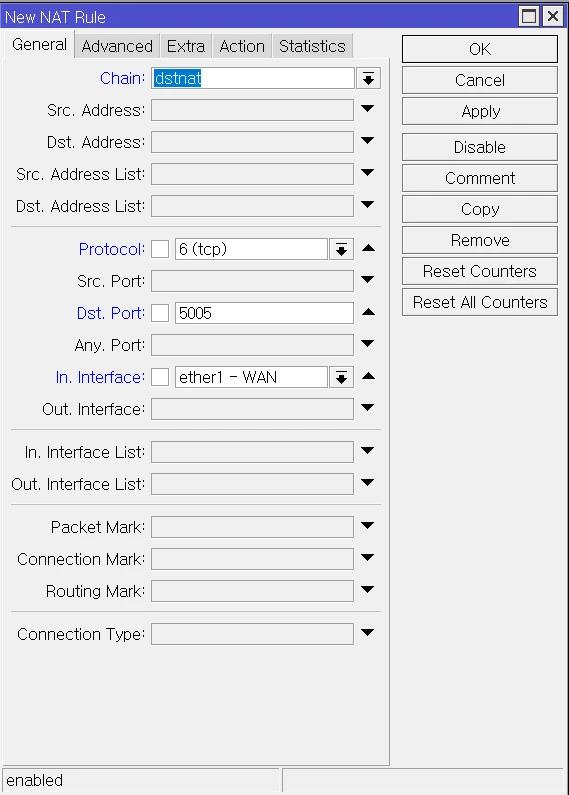
 Configure the settings in the General and Action tabs as shown, then save.
Then, connecting to port 5000 will take you to 10.1.1.198 (the Synology NAS).
This method has a Hairpin NAT issue that prevents access to the external IP from inside the network, so you should configure it using the link to the new post below. https://ggami.net/posts/215
I often used DNS Host in EdgeOS. That’s because I set up a virtual domain and routed it through Traefik, allowing me to work over HTTPS locally during development. You can change the value in Windows, but that can cause host-related problems with Node servers or socket servers, so using the router’s DNS Host feature is best.
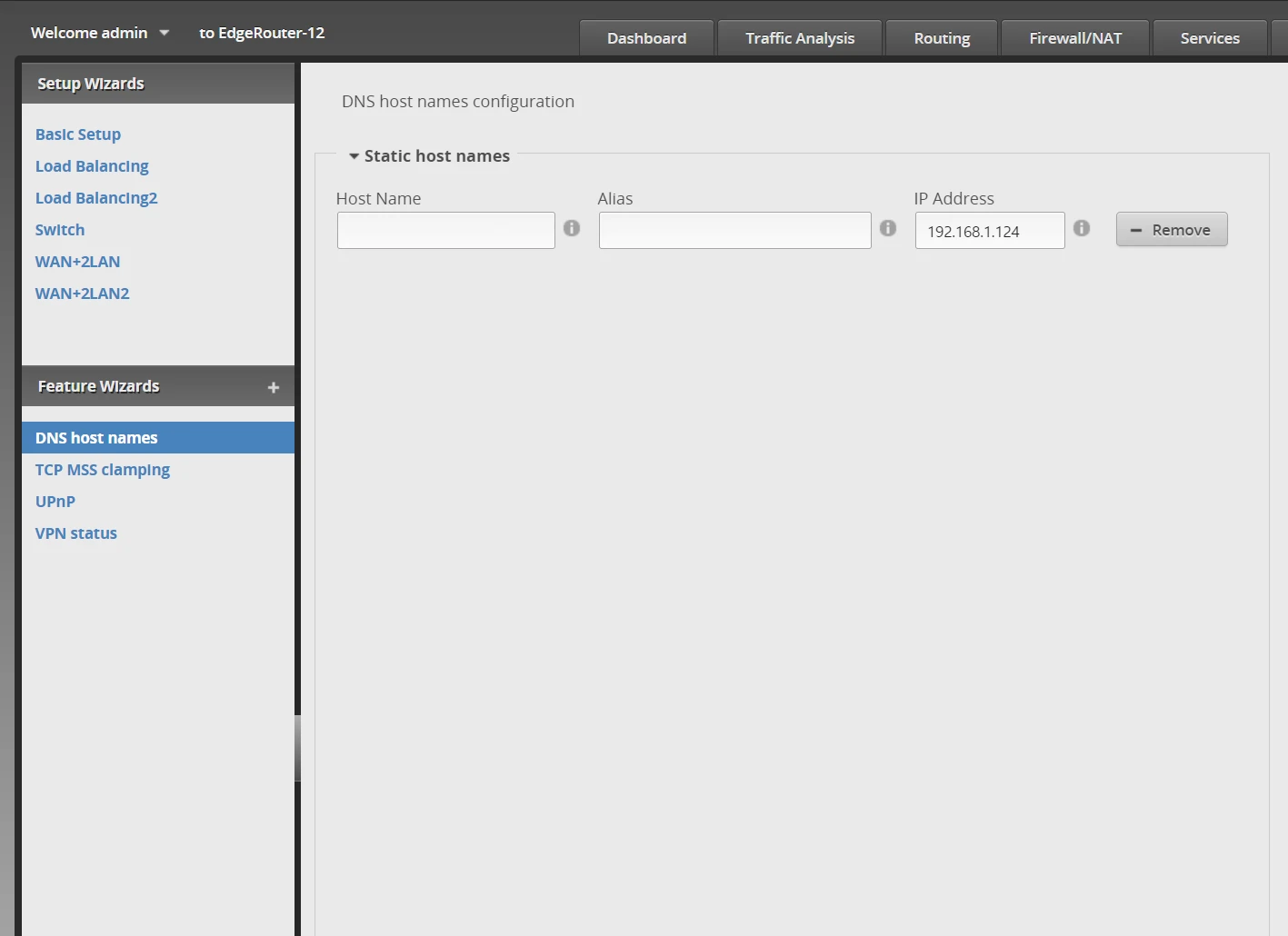
However, if you follow the video above, you won’t be able to use the DNS static feature, because DNS Servers have already been set to 8.8.8.8 and 1.1.1.1 in DHCP Server Network.
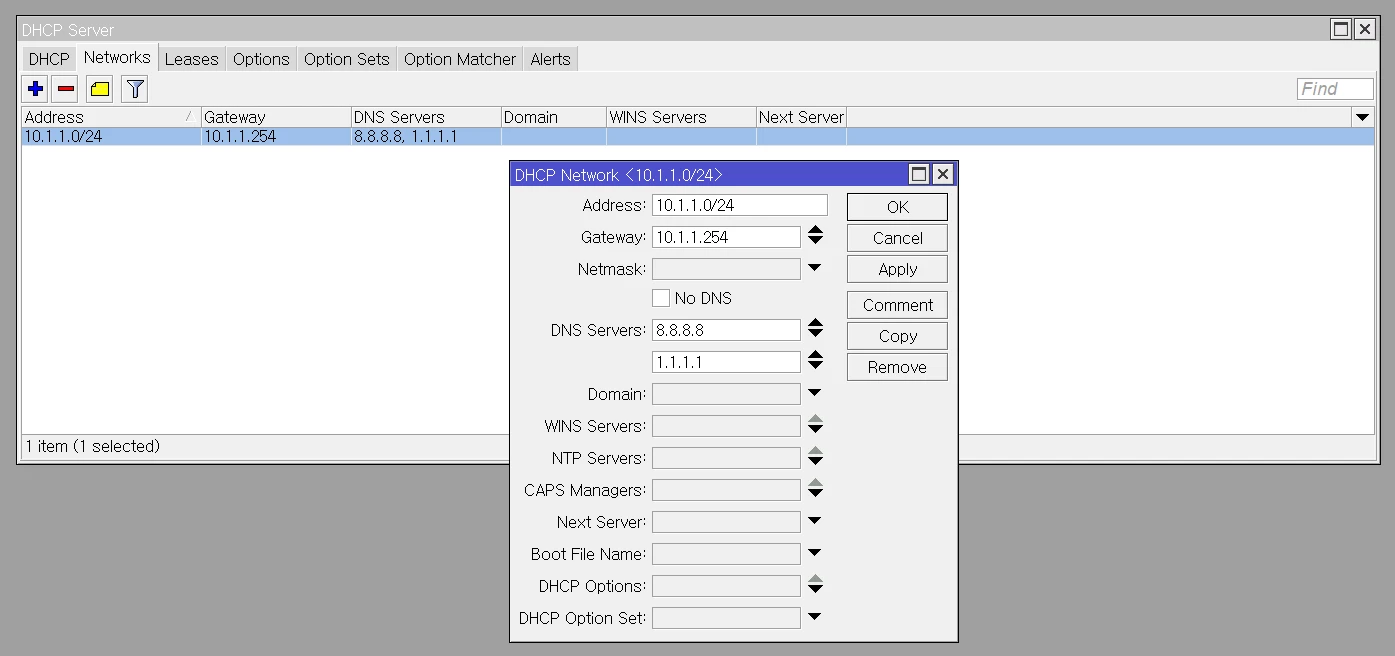
So first, delete the DNS Servers information from DHCP Network.

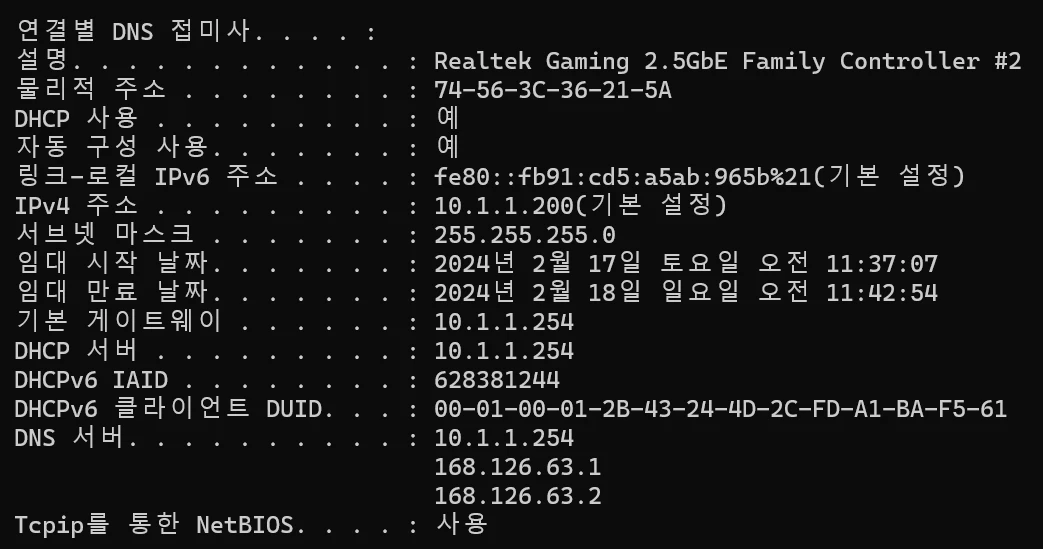
The DNS servers will then change as follows.
They will be changed to these.
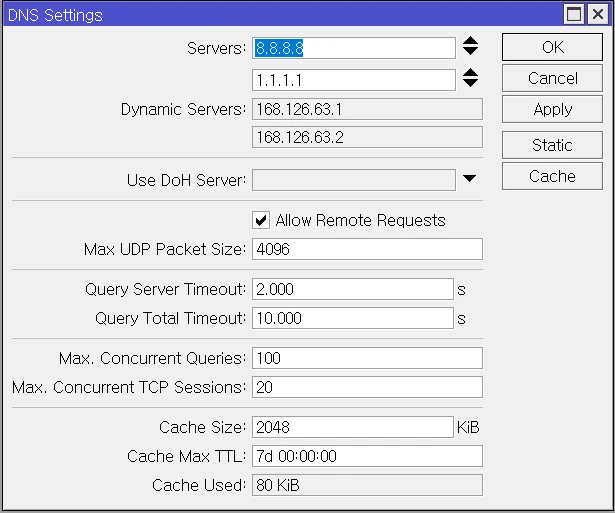 Next, go to DNS Settings here, then set up Global DNS under Servers.
Add 8.8.8.8 and 1.1.1.1.
!!!! One thing I almost forgot here: be sure to set Allow Remote Requests to true !!!!
This is the last and most important part.
 All the entries you add after clicking Static under DNS
are redirected through DNS Static on 10.1.1.254.
local.local -> 내 개발 컴퓨터
server.local -> 내 서버 컴퓨터
That’s how the connection is made.
When I’m actually developing,
ggami-dev.net -> 내 개발 컴퓨터 with it set up to point to my development computer,
I develop over HTTPS using the ggami-dev.net domain.
In practice, nslookup command, you can confirm
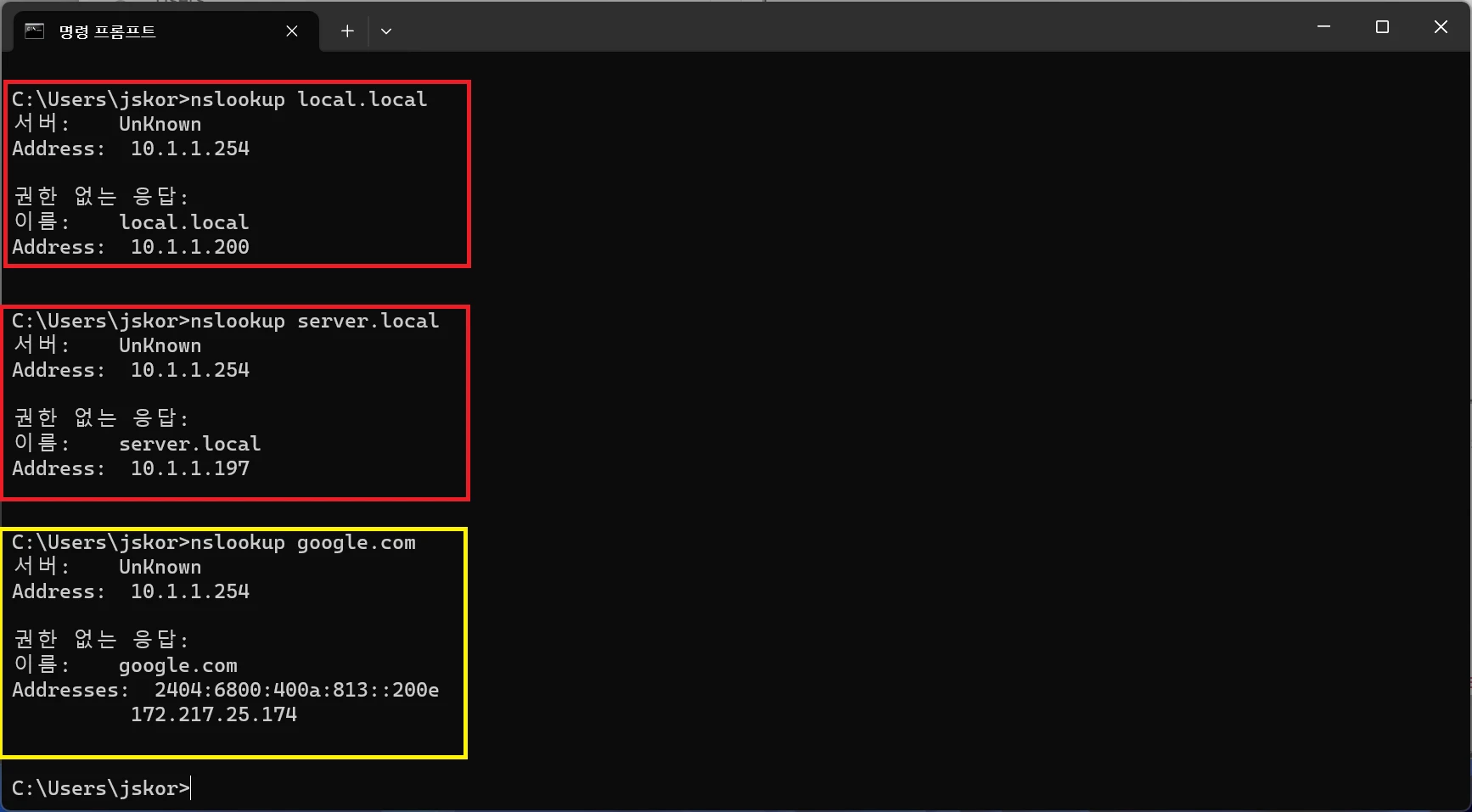 that it has changed correctly, as shown above.
Since the EdgeRouter has a good web UI and I was used to it, I thought it would be quite cumbersome and complicated to have to launch winBox.exe to use it. (Of course, WebFig is available, but I haven’t tried it yet.)
But that wasn’t the case at all. In fact, it had even more convenient features than the web UI, all implemented in the UI, and I actually found entering commands through the terminal much easier than on EdgeOS.
Most importantly, I think MikroTik RouterOS definitely offers more features and flexibility than EdgeOS. It seems to make it easy—or at least possible—to configure a wider variety of complex settings.
I’ve used EdgeRouter for almost 10 years (two models), but now I’m planning to try a MikroTik router.
I hope it keeps running well without any issues... =)
I’d also like to try the dual-WAN setup I used on the EdgeRouter before, as well as outbound load balancing, but due to time constraints I’ll have to try those another time and write about them later.
I want to let EdgeRouter users know that they don’t really need to hesitate about switching to a MikroTik router.