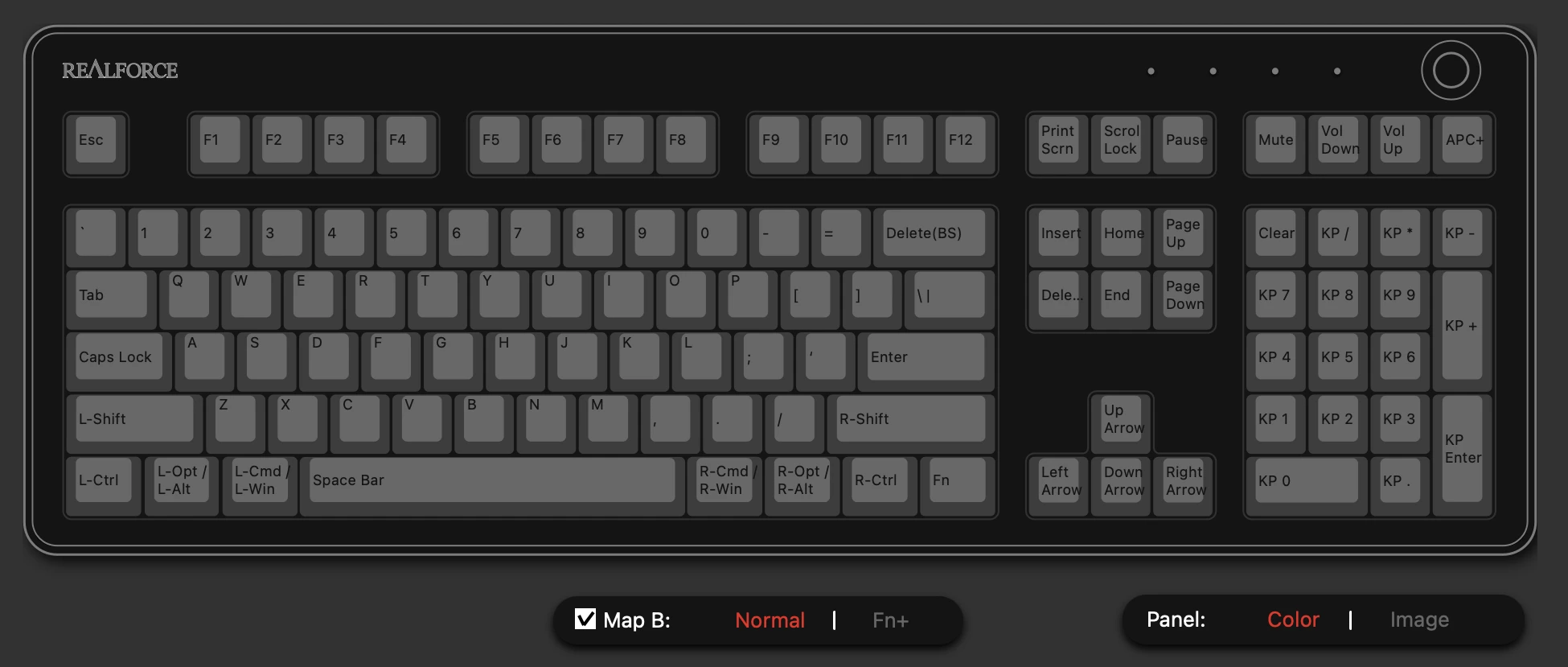
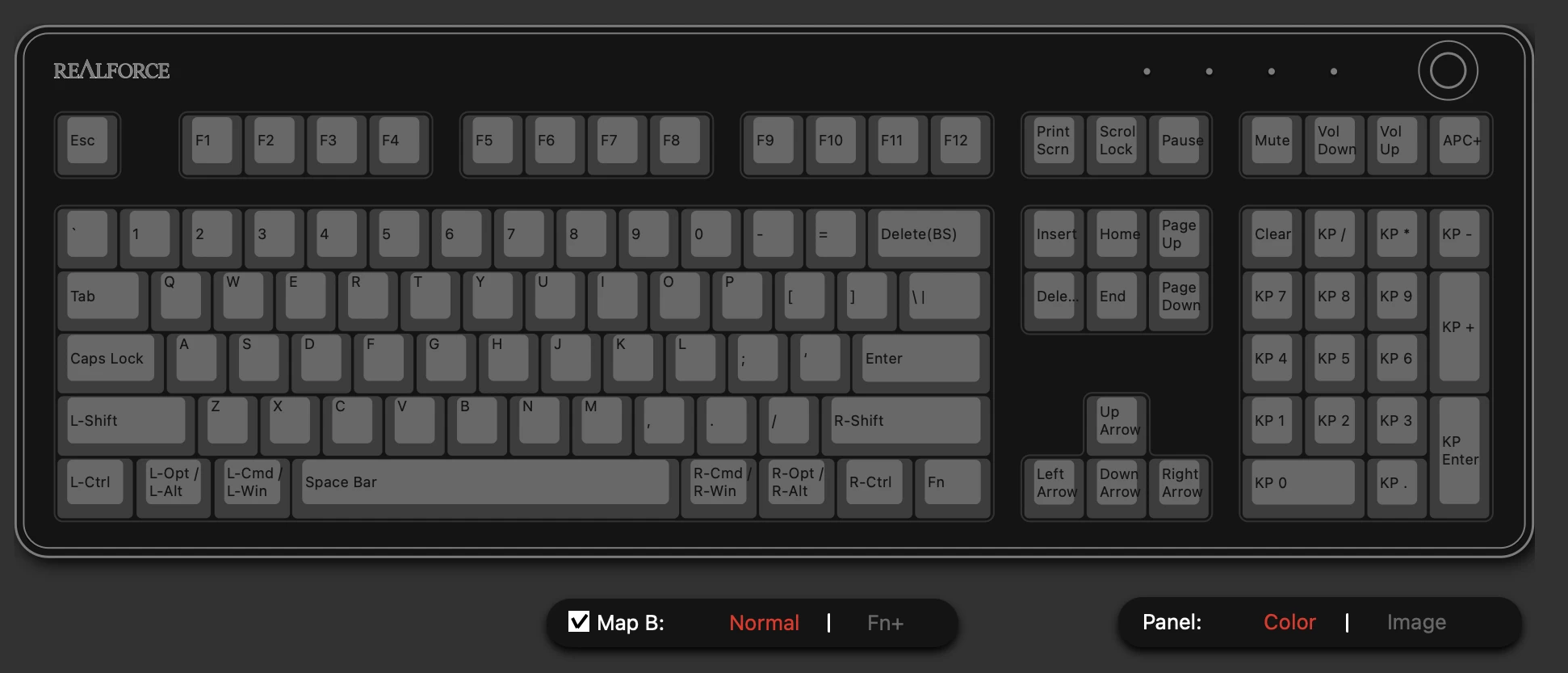
Changing the Realforce Keyboard Key Settings for Mac
When I bought a Mac mini recently, I also bought a keyboard. The first one I bought was https://www.realforce.co.jp/en/products/R3HF11/ It was the R3HF11. But t
GGAMI
When I bought a Mac mini recently, I also bought a keyboard. The first one I bought was https://www.realforce.co.jp/en/products/R3HF11/ It was the R3HF11. But t
When I bought a Mac mini recently, I also bought a keyboard.
The first one I bought was
https://www.realforce.co.jp/en/products/R3HF11/
It was the R3HF11.
But the problem was that it was 45g.
https://www.realforce.co.jp/en/products/R3SB13/
The one I used with Windows was the R3SB13, which is 30g, and the one I bought this time was 45g.
The difference turned out to be much bigger than I expected. I started making more typos than I expected, and the longer I typed, the more tired I felt...
So I immediately sold the R3HF11 secondhand to someone I know.
Then I bought the R3HB13 instead. https://www.realforce.co.jp/en/products/R3HB13/
It's simply a 30g wireless keyboard with a Windows key layout.
But the important thing here is that Realforce wireless keyboards let you set up and use two keymaps, A and B, even with a Windows key layout.
So even if you buy one with a Windows key layout, you can easily change the settings to use it with a Mac.
I should have saved the key settings when I bought the R3HF11, but I didn't, so I'll explain using an image I found online.
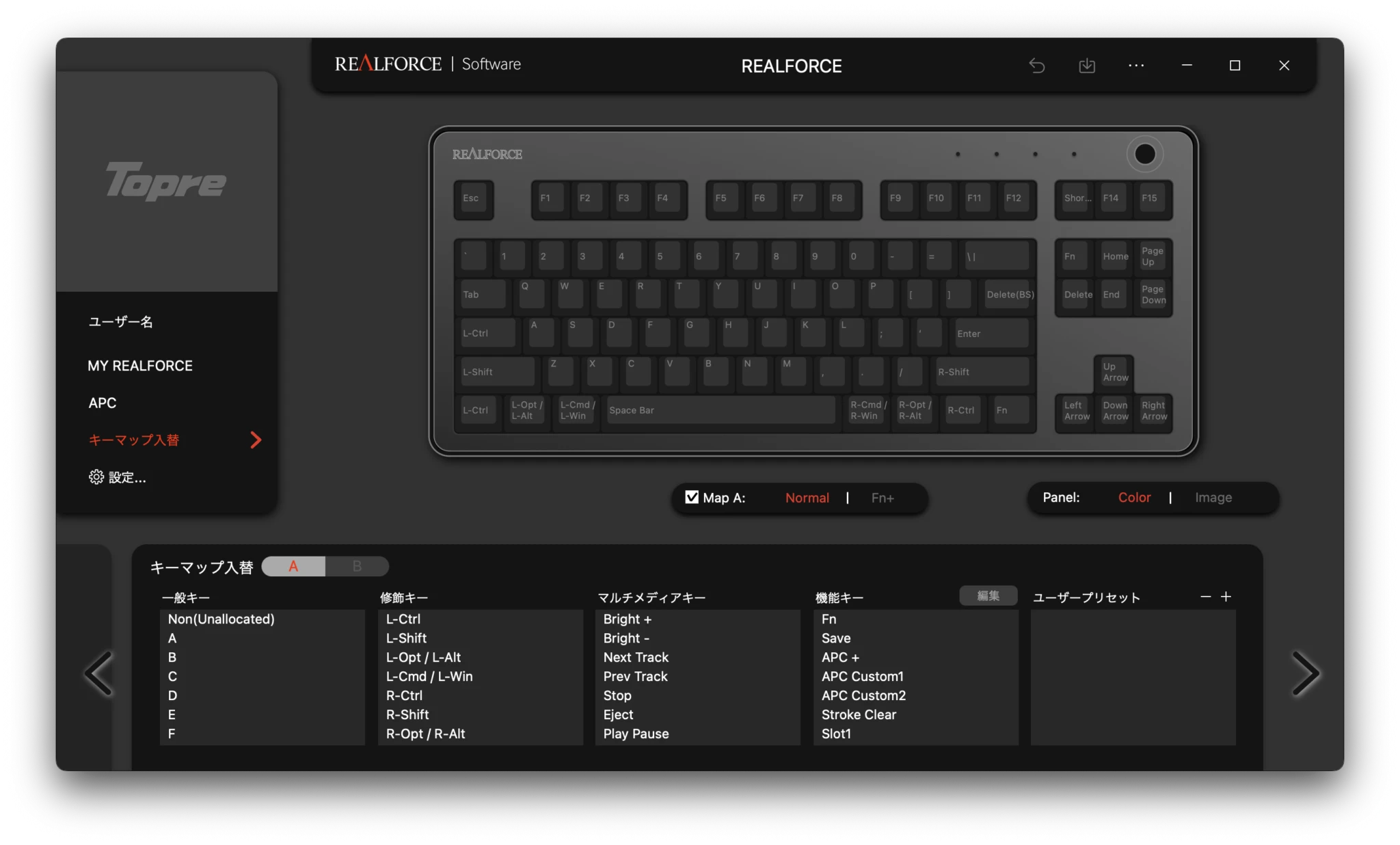 This is the keymap setup for Mac.
To configure it, drag and drop the items under Remap below onto the corresponding keys.
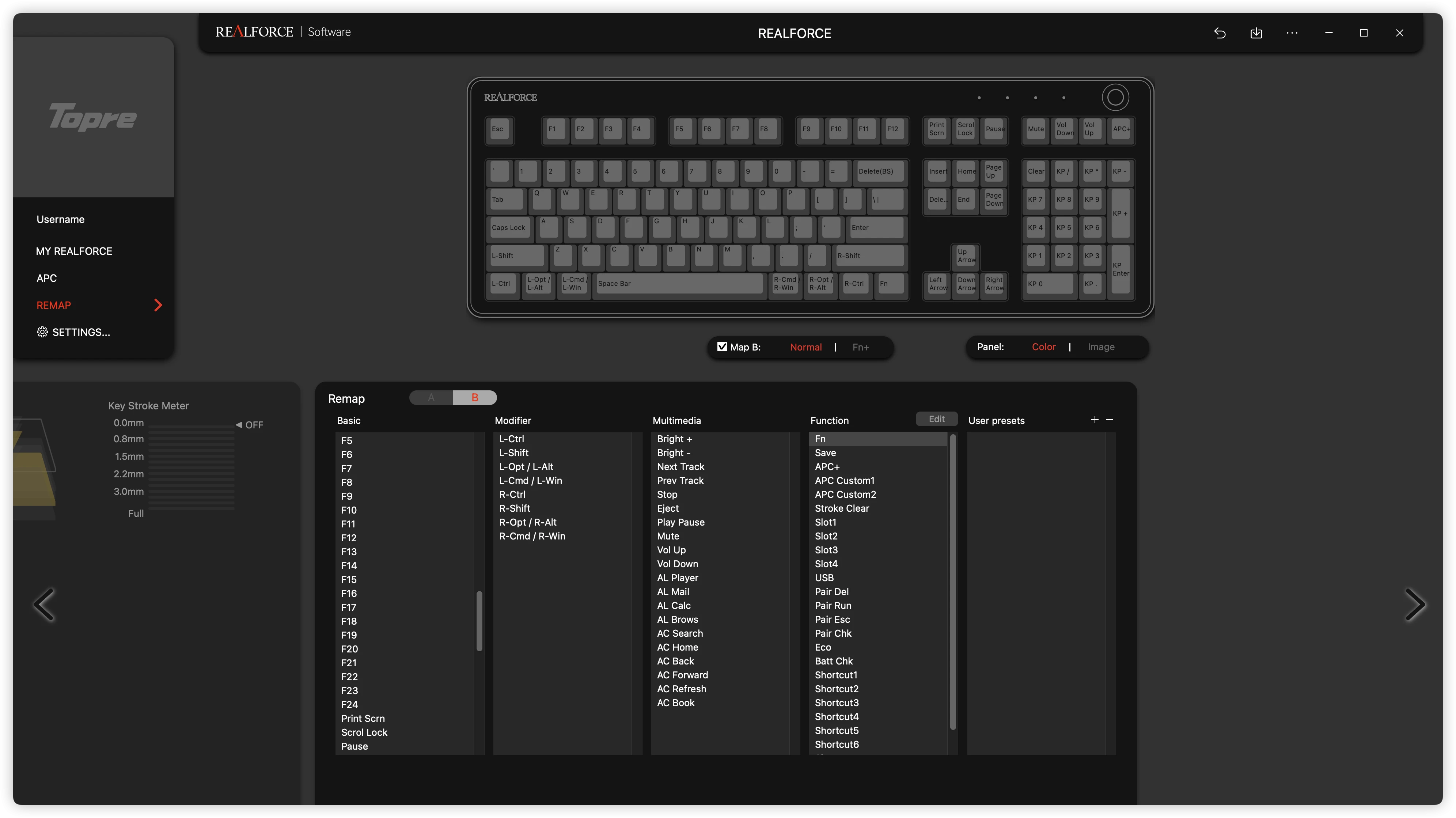
This is the setup for using the R3HB13 specifically with a Mac.
I set it to B. When using it connected to Windows, I can use A, and when using it with a Mac, I'll use B.
There isn't much of a difference, but you can set it up this way.