
Introduction to Factory Resetting a Surface Pro
I’ve been using a Surface Pro for a while, and since I can’t uninstall something from Control Panel (Uninstall a program) because of an unknown permission error
GGAMI
I’ve been using a Surface Pro for a while, and since I can’t uninstall something from Control Panel (Uninstall a program) because of an unknown permission error
Contents
I’ve been using a Surface Pro for a while, and since I can’t uninstall something from Control Panel (Uninstall a program) because of an unknown permission error, I thought I’d take this opportunity to factory reset and format my Surface Pro.
Unlike a regular computer or laptop, a Surface Pro has to be factory reset using a dedicated file.
This factory reset is the same as a regular format, so make sure to back up any important files yourself. (Required)
You need a USB drive with at least 16 GB of storage.
Format the USB drive as FAT32.
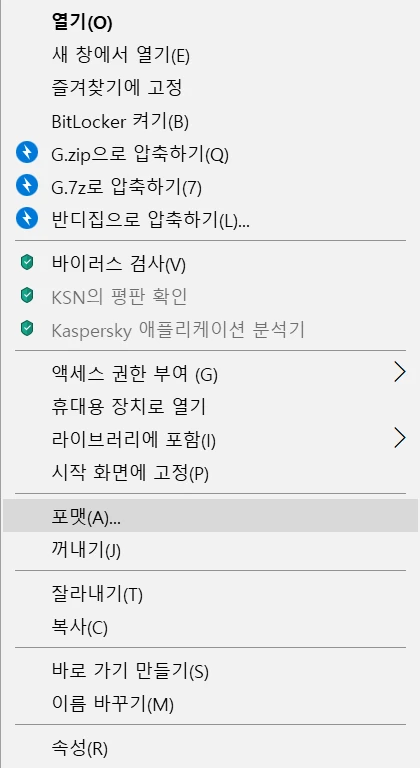
You can format it by right-clicking the USB drive in This PC and selecting [Format].
Once you’ve formatted the USB drive, follow the steps below.
Click the link above to download it. The serial number is printed on the back of the Surface Pro.
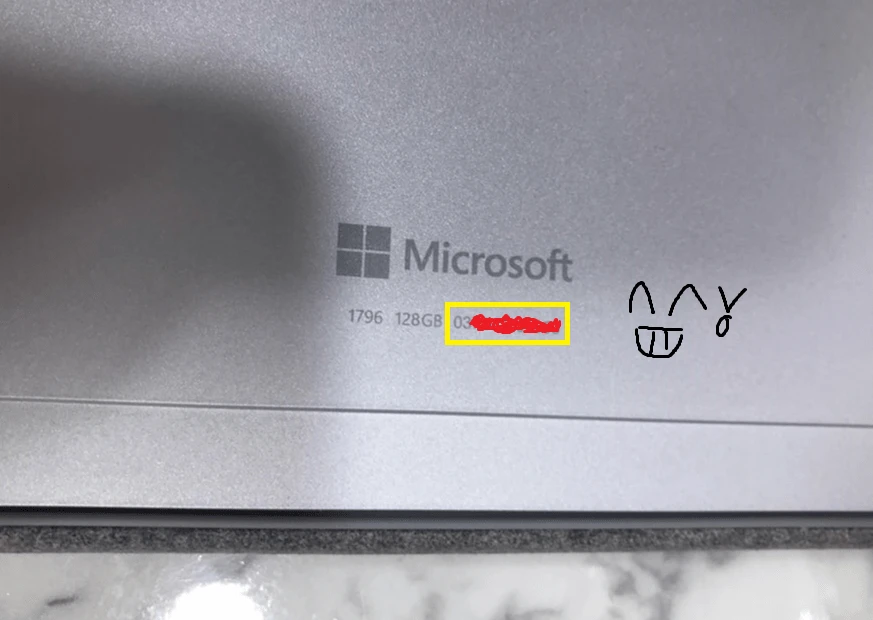
At first, I thought it was a Surface Pro 7, but when I entered the serial number, it automatically showed that it was a Surface Pro 6. ^^
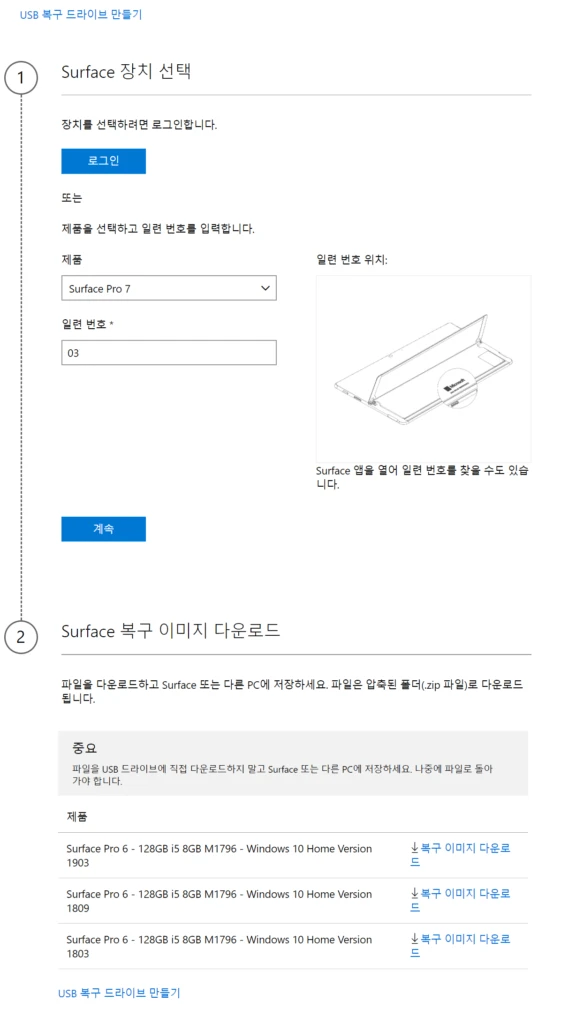
Extract the downloaded compressed file, then copy the files that were extracted to the USB drive formatted as FAT32. (e.g., SurfacePro6_BMR_102_9.507.0.zip)
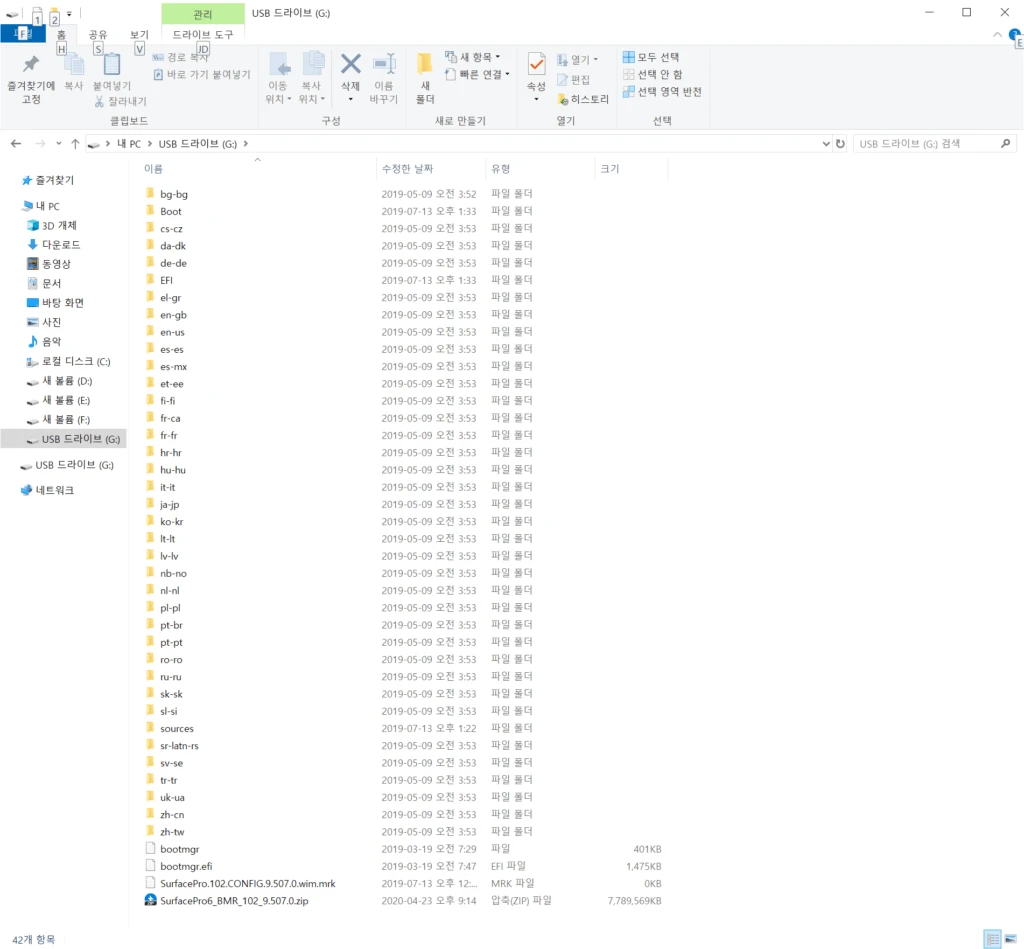
Connect the bootable USB drive to the Surface.
Press the "- Volume" and "+ Volume" buttons while also pressing the "Power" button.
Keep holding the "- Volume" and "+ Volume" buttons until you enter recovery mode.
(It’s not the - Volume button, but the + Volume button... This may apply to the Surface 6 or later...)
@ If Windows starts instead of recovery mode, repeat the process until you enter recovery mode.
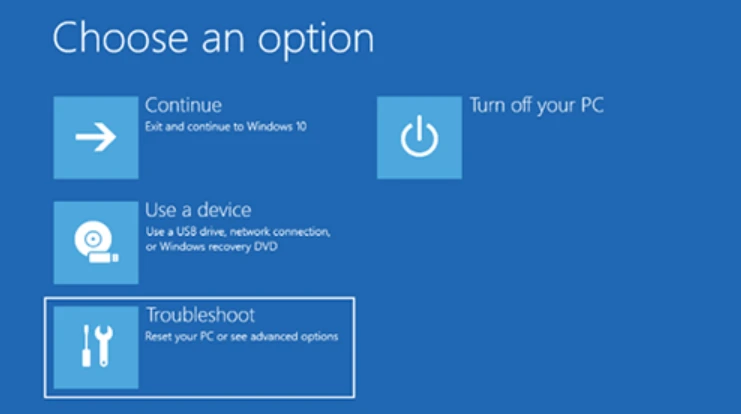
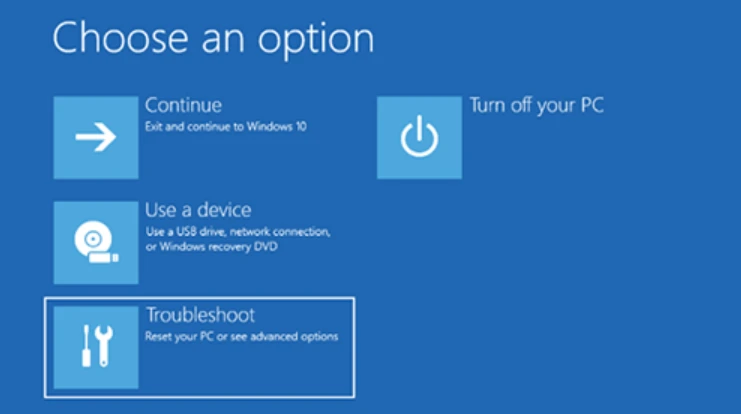
Once you’re in recovery mode, go to Troubleshoot, then select "Recover from a drive" to perform the factory reset.
Once the factory reset is complete, the Surface Pro will boot into the Windows initial setup screen. At this point, remove the USB drive and finish the remaining setup.
After completing all the setup steps, run Windows Update.
In the past, I factory reset a Surface Pro I used to own before selling it. This time, I went through the process of factory resetting the Surface Pro I was using myself.
I’m glad it worked without any problems.
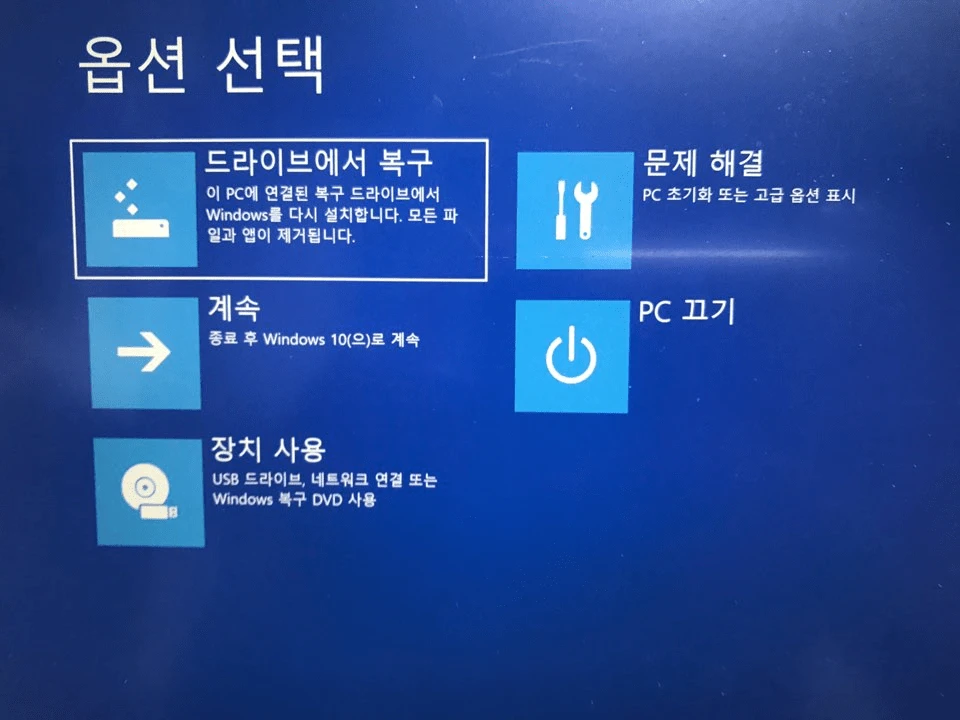
Click Recover from a drive
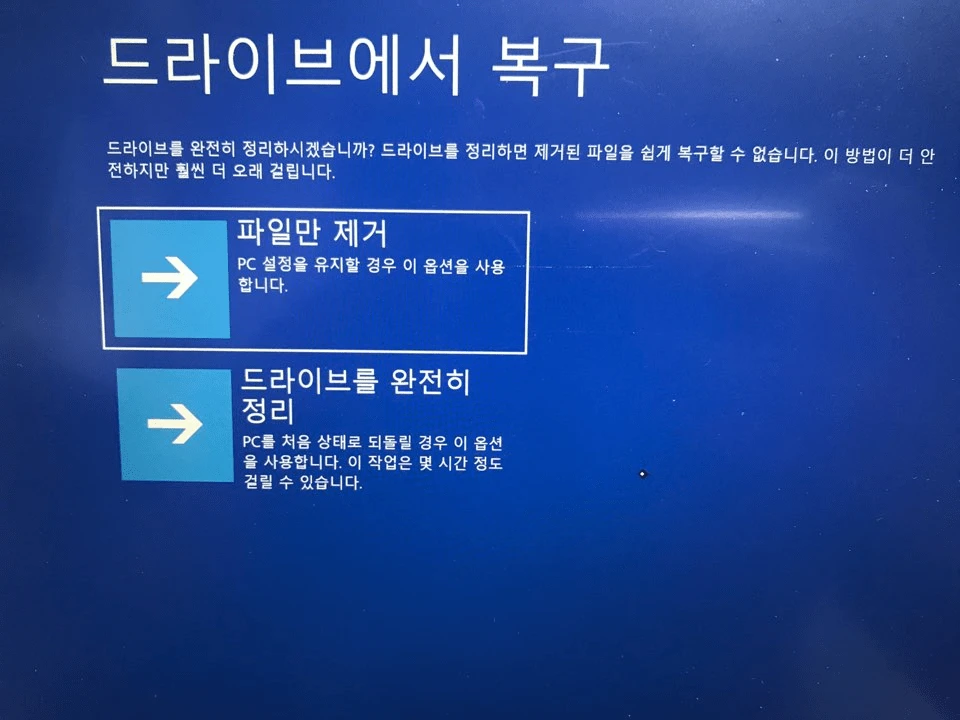
Click Fully clean the drive
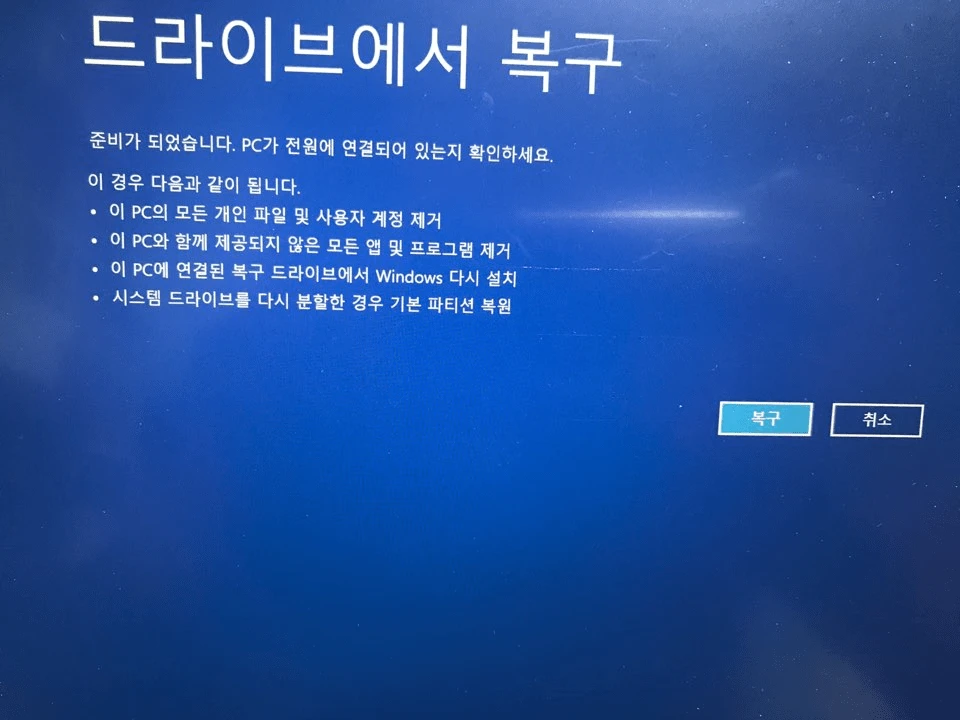
Click Recover
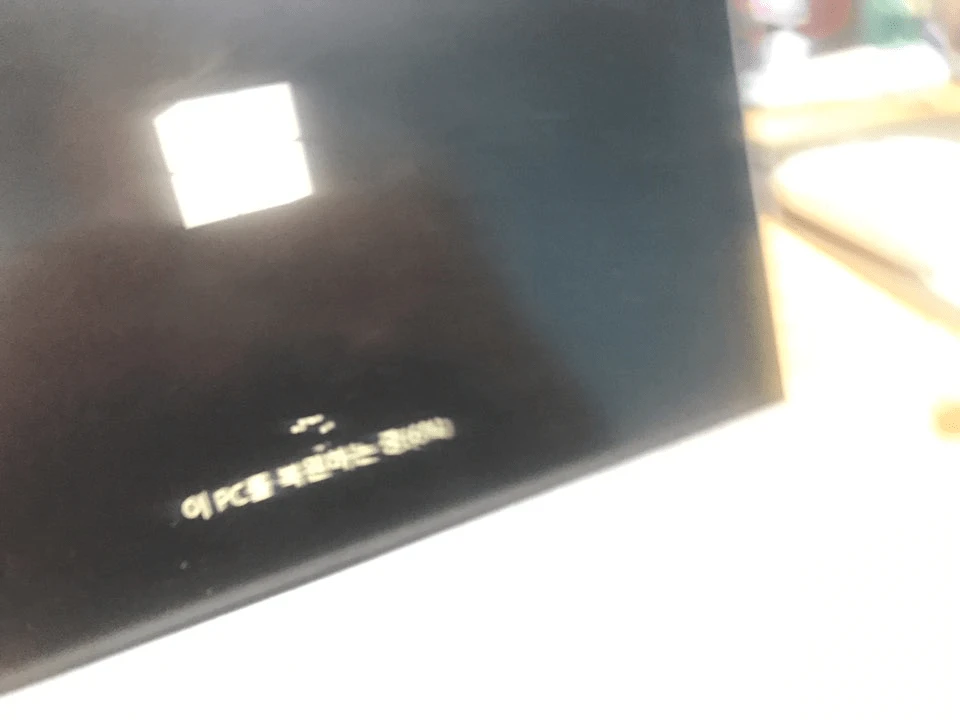
Recovering...
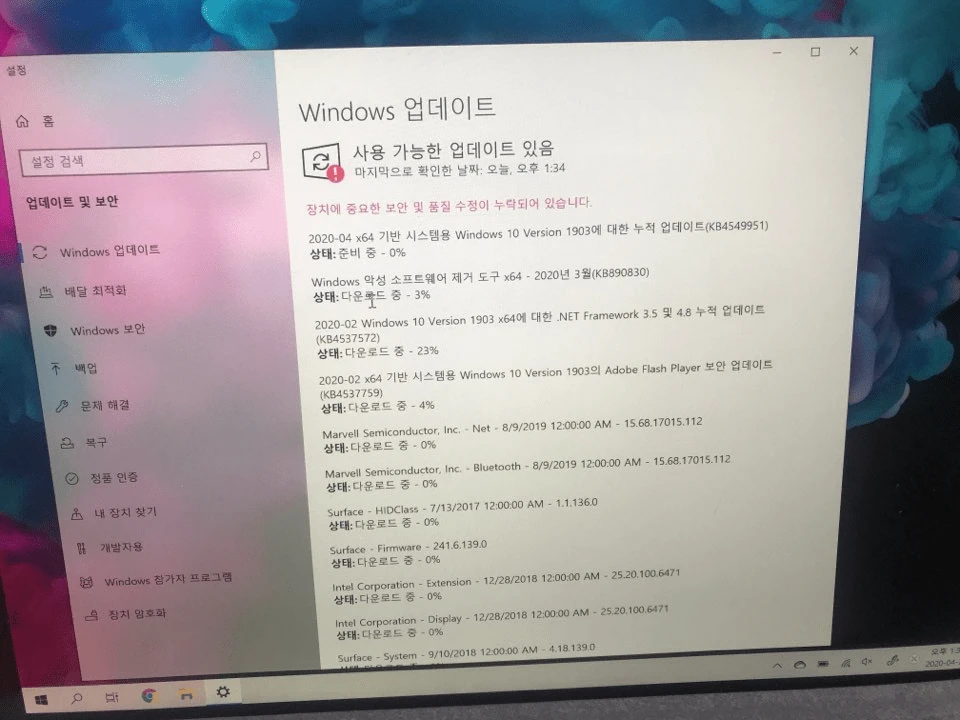
Run updates after setup.
It didn’t used to be this way, but now you have to connect to the internet, and link a Microsoft account too... I’m pretty sure that wasn’t the case when I first bought and set it up... I think I just created a Windows user, but anyway, I’ve linked my Microsoft account now.